A demographics shell is easy to sketch. Keeping its treatment columns, footnotes, variable bindings and programming assumptions together is harder. The free Mock Shell Generator puts these pieces in one browser workspace, with editable templates and downloadable review artifacts.
TL;DR — Start with a synthetic shell, edit the study setup, and save a portable project. Add an ADaM specification when you want reviewed variable bindings, readiness checks and SAS/R program scaffolds. No account or payment is required for the core workflow, and automatic binding has no commercial row quota.
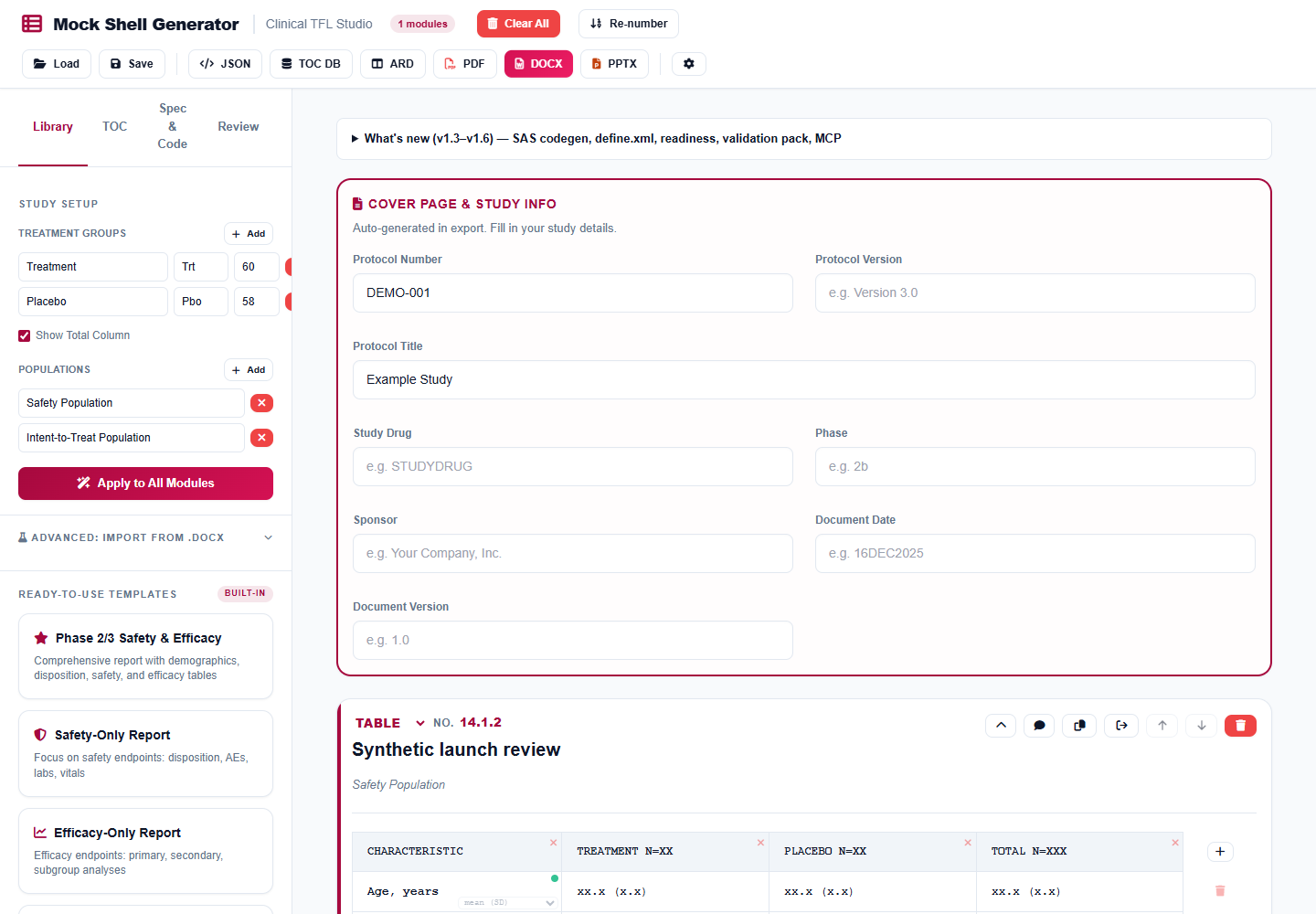
An editable synthetic shell; placeholders are not patient results.
Watch the walkthrough
Watch on YouTube, or use the alternative player below with English captions. The two-minute slide walkthrough uses AI-generated narration.
Alternative player hosted on this website
Start with one table
Open the tool and choose Demographics & Baseline from the Library. Set your treatment groups and population before adding more modules. Edit the title, rows and footnotes to match the intended output. Use synthetic values while learning; placeholders are not calculated study results.
Add a reviewer comment to a row or module, then resolve it after making the change. Save the project as JSON before trying another template. Reloading that file restores the editable project; a PDF is a review copy, not a replacement for the project.
Connect the shell to a specification
Open Spec & Code and import a supported define.xml 2.0 file or metacore-style spreadsheet. Select Auto-bind variables, then inspect the candidate queue. A similar label is a suggestion, not evidence that two variables have the same clinical meaning. Confirm or correct dataset, variable, category filter and statistic before generating code.
The practical sequence is:
Synthetic shell → study setup → specification
→ reviewed bindings → readiness check → program scaffold
→ independent programming and output review
Choose base R, SAS or pharmaverse to preview the generated program. Download the scaffold and run it in your own programming environment against the intended inputs. The browser generates text; it does not execute SAS or R, resolve every analysis convention, or certify the output.
Choose the right export
| You need | Use |
|---|---|
| An editable backup | Project JSON |
| A shell for review | DOCX or PDF |
| Slides for a review meeting | PPTX |
| Display metadata | ARD CSV or the supported tfrmt JSON subset |
| Programming handoff | SAS/R scaffolds and traceability report |
| A specification starting point | Draft spreadsheet or define.xml |
Readiness compares required variables with supplied CSV headers or supported Dataset-JSON metadata. A ready verdict does not establish correct values, complete derivations, appropriate populations or regulatory suitability. Likewise, the validation evidence starter is a documentation scaffold: actual execution results must come from your own testing.
Privacy and practical limits
Core editing, supported imports and exports run in your browser. Generated programs and specifications require independent review; a readiness verdict does not establish correct study results. The application uses browser storage for project/settings persistence, so use JSON backups and clear site data on shared devices. Avoid confidential study material unless your organization permits this workflow.
Optional AI assistance is separate from the free core. It sends prompt content to your chosen provider using your own account; provider charges and policies apply. You can complete the workflow without enabling it.
Document imports and metadata mappings cover supported structures, not every possible clinical document. Inspect imported rows and exported pagination. Keep the decision-support notice and arrange independent review before using generated artifacts in a real study.
Start with one synthetic table, save the project, and compare the exported shell with your intended specification. For the environment in which generated programs should be reviewed and run, see the statistical computing environment guide. The tools collection describes the other utilities and their individual support boundaries.